Custom Month Span
In the Self-Consumption mode, users can set battery charging/discharging plans to optimize the energy usage and management. With properly set battery charging/discharging windows, the system maximizes the use of PV output during on-peak hours and reduces the energy purchased from the grid during off-peak hours, thus lowering the electricity costs.
Function Logic
- Allow Discharging: Allow the battery to discharge to power the loads in a specific time period. All-day by default (0–24h).
- Force Charging: Charge the battery at the maximum allowable power in a specific time period until the target SOC is reached. If the PV output is insufficient to meet the battery charging power demand, the system is allowed to charge the battery with energy from the grid.
Note: Battery discharging and charging windows can overlap. Force charging takes priority if a time window is set for both battery discharging and force charging.
Procedure
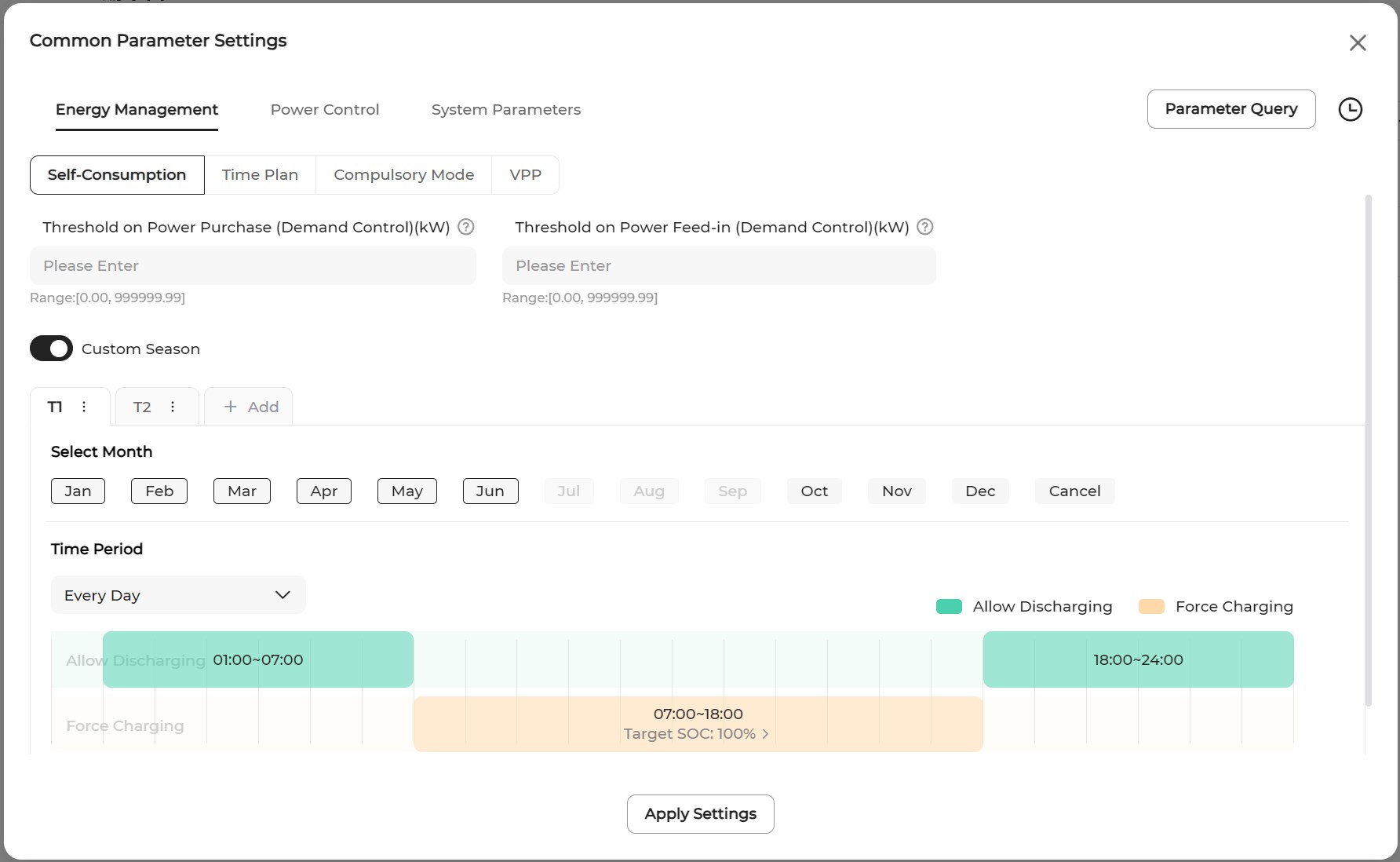
- Enable Custom Month Span.
- Set the desired month span. You can set different time windows based on seasonal energy demand patterns.
-
Select the days on which the battery charging/discharging plan applies.
You can apply the charging/discharging plan to all days, or set different charging/discharging plans for weekdays and weekends. The work plan applies to all days by default.- Every Day: The set charging/discharging plan applies on all days. This option is ideal for scenarios where the daily energy demand is relatively stable.
- Weekdays & Weekends: Set different charging/discharging plans for weekdays and weekends.
- To add more month spans, click Add to the right of the default month span name.Note: You can select a month span and click
 to modify its name or delete it.
 - Click on a time period in the Allow Discharging time bar. A new discharging window will be created (1 hour by default). Then, drag the left or right edge of the window to adjust the length of time.
-
Click on a time period on the Force Charging row, a new charging window will be created (1 hour by default). Then, drag drag the left or right edge of the window to adjust the length of time.
Click a time window that has been added, set a charging target in Target SOC (%).