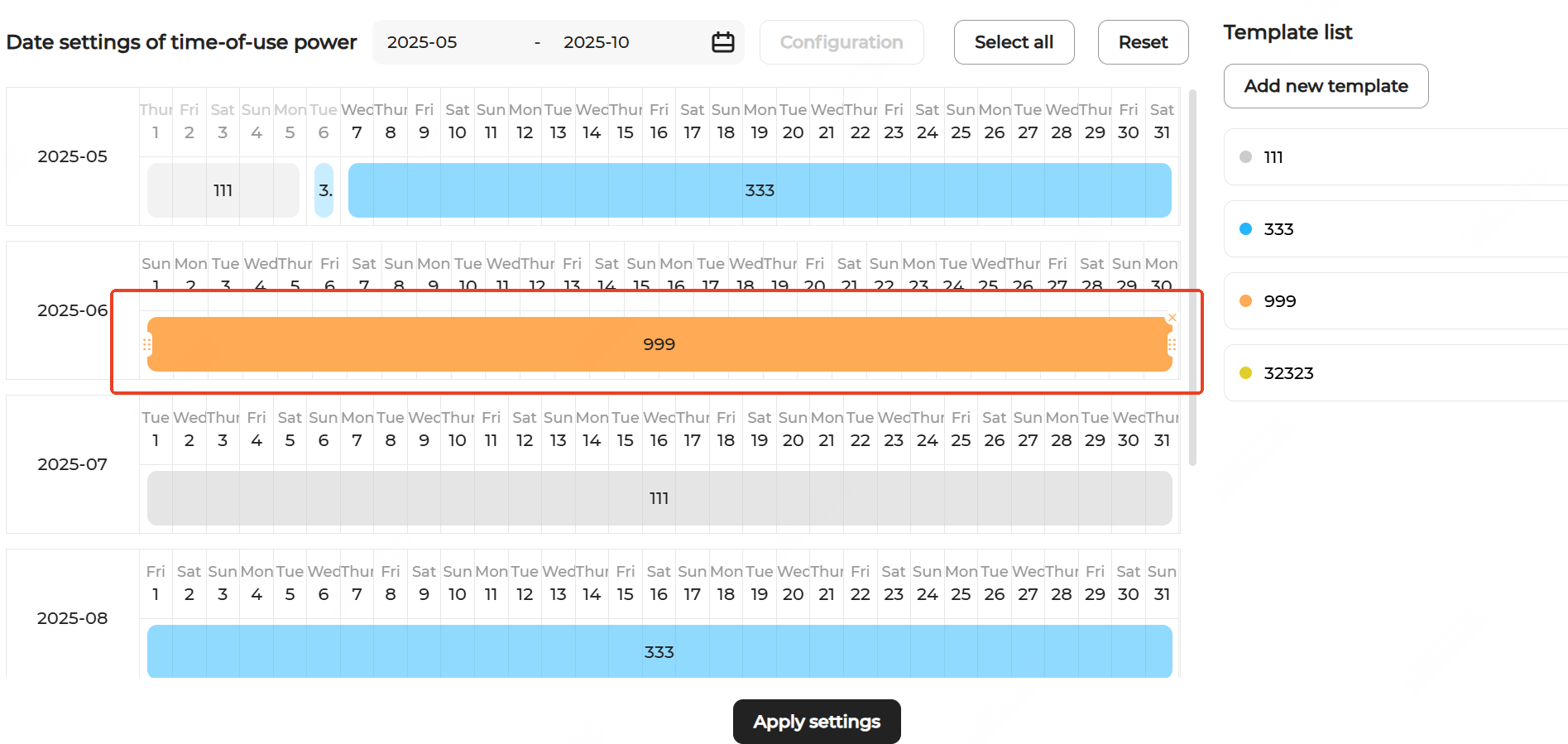
Configure Time-of-Use Power Strategies
-
Click the calendar icon highlighted in the figure below to select a target period (e.g., a specific month).
Note: The system applies a default time-of-use power template initially. Modify or replace it as needed.
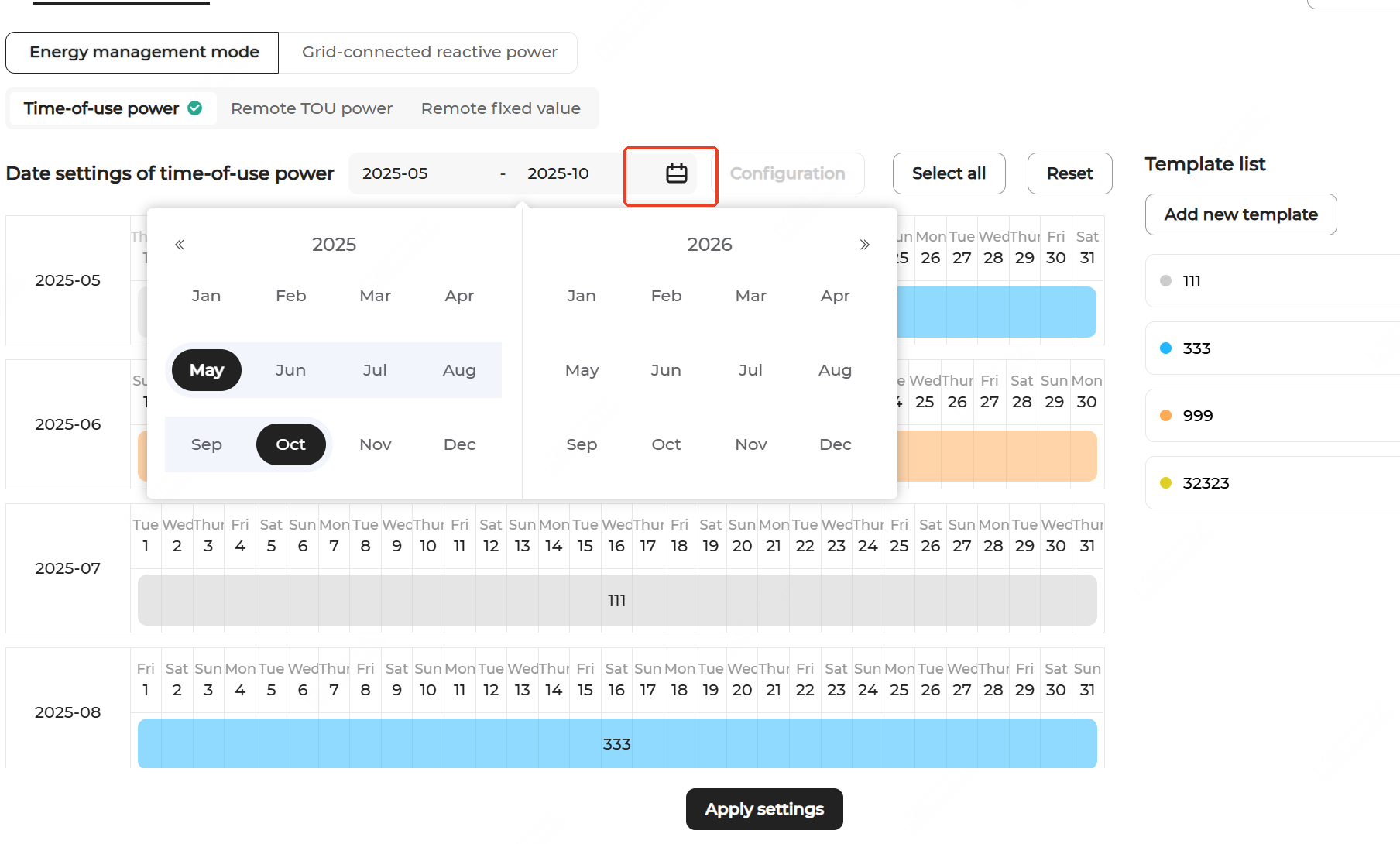
-
Choose an appropriate time-of-use power template to configure the time-of-use power strategy:
- If the same strategy applies to all days in the selected period, select
all dates using the Select all option, then click
Configuration. In the pop-up window, select
the desired time-of-use power template and click Confirm. The configured strategy will apply to all
selected days.
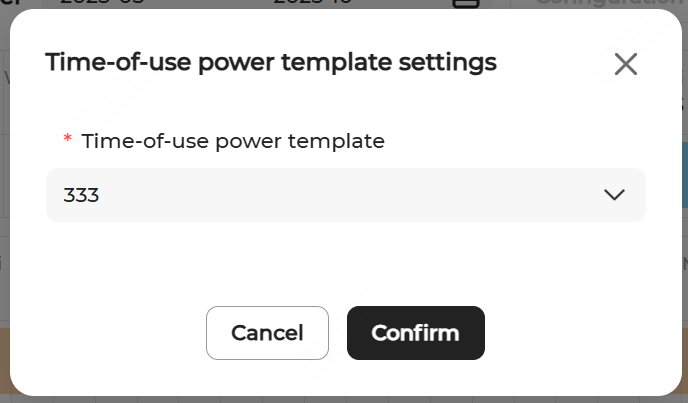
- If different strategies apply to different days (e.g., differentiating working days and non-working days), hover over a specific date, select a single day or a date range, then click Configuration. In the pop-up window, select the desired time-of-use power template and click Confirm. The configured strategy will apply only to the selected days.
- If the same strategy applies to all days in the selected period, select
all dates using the Select all option, then click
Configuration. In the pop-up window, select
the desired time-of-use power template and click Confirm. The configured strategy will apply to all
selected days.
-
(Optional) Delete a time-of-use power strategy. Hover over the configured time block you want to delete, and click the Close icon in the upper right corner of the time block.