Smart Load
You can select different working modes for the connected loads on the Smart load tab and enable or disable them in different time periods.
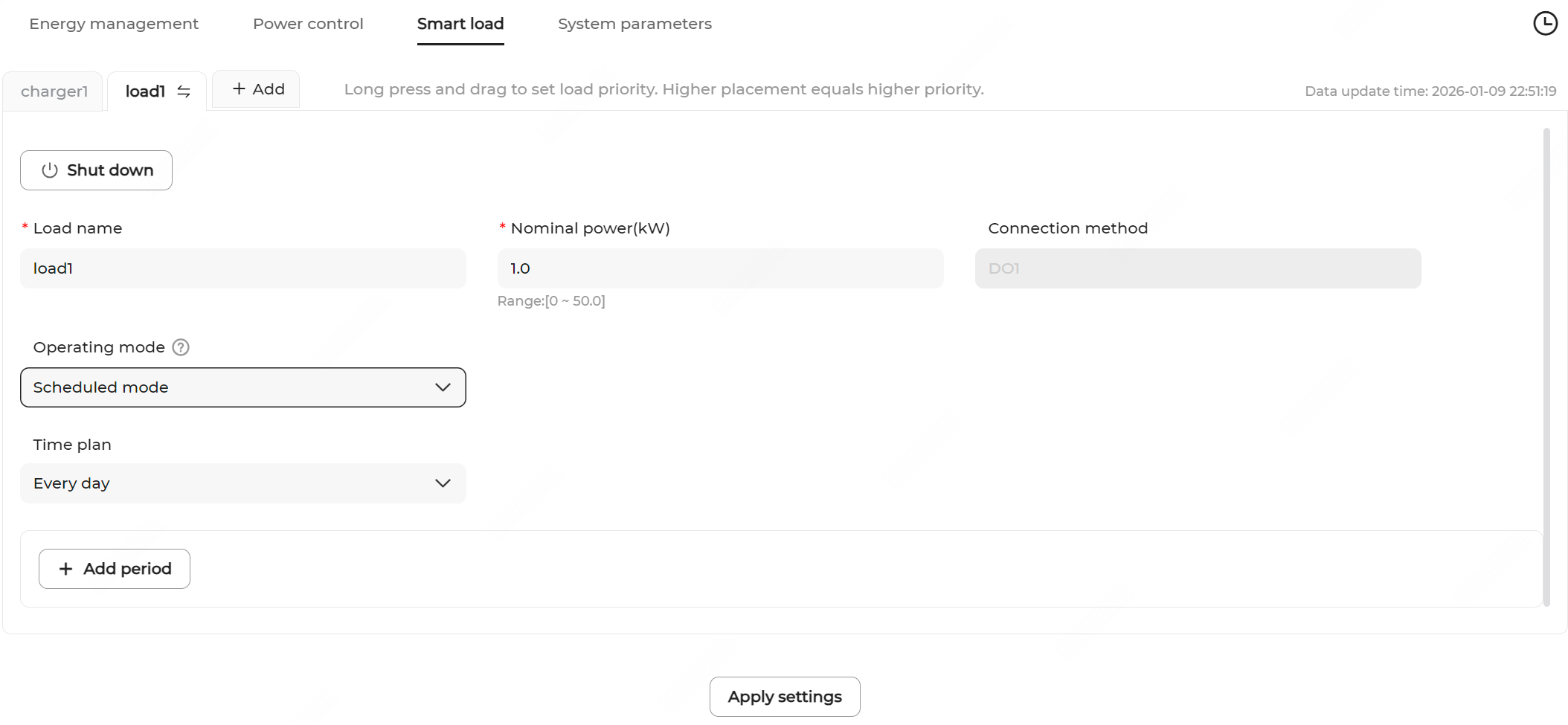
- The Smart load tab displays the loads already connected to the device.
- Click the sub-tab for a smart load to view and configure the corresponding parameters.
- Enter or modify the Load name and set the Nominal power.
- Set the operating mode. Options include the following.
Mode Description Scheduled mode Enable smart load in the user-defined time periods. After selecting the mode, define the time plan for the mode.
- Choose Time plan to set validity for every day or on working days and non-working days.
- Click Add period and set the Start time and End time of each period.
Instant mode Enable smart load immediately. ECO mode Enable smart load in the user-defined time periods when the allowable feed-in power exceeds the set rated power of the smart loads. If you select this mode, configure the following.
- Configure Discharge prohibition SOC threshold (%), which will be used to decide whether or not to direct battery energy to compensate for the insufficient PV output.
When the system SOC is above this threshold, the battery discharge is allowed to supply the charger.
When the system SOC is below this threshold, the battery discharge is not allowed to supply the charger.
- Turn on or off Allow AI recommendation.
- Choose Time plan to set validity on every day or on working days and non-working days.
- Click Add period and set the Start time and End time of each period.
- Hold and drag the tab to adjust the load priority. The closer to the front, the higher the priority.
- Click Apply settings.